
iPhone Duo Split View: 12 App Pairs for Document Work
What Split View on iPhone Duo can and can't do, how to set up a pair, and twelve pairs that make document work faster.
By Conscious Engines Studio · · 6 min read
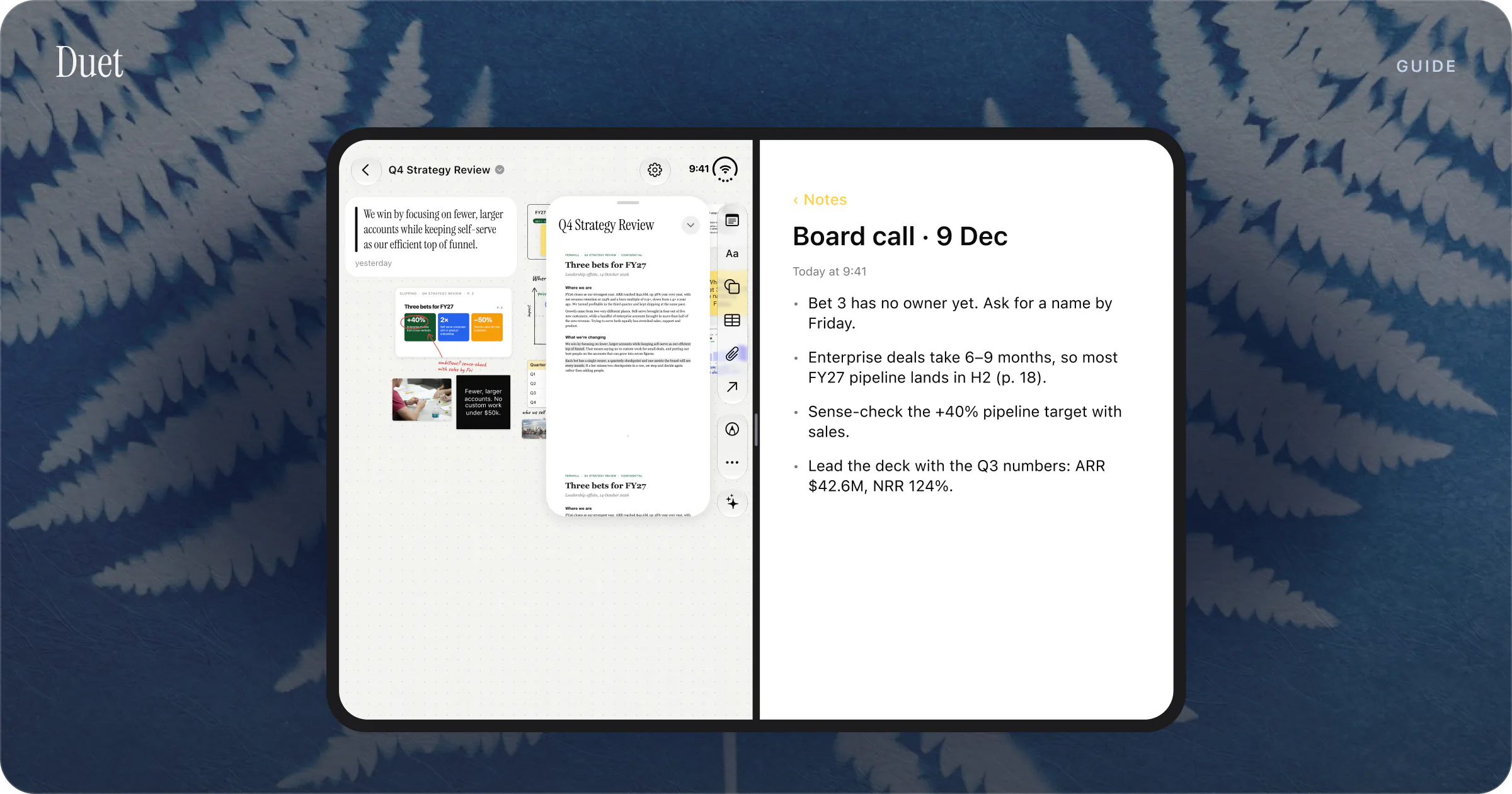
Split View on iPhone Duo puts two apps side by side on the 7.6-inch inner display, or two windows of the same app, and you can save a pair of apps to come back to later. For document work, the best pairs put the document on one side and the thing you're doing about it on the other: notes, a reply, the meeting, the call or a second document.
How Split View works on iPhone Duo
iPhone Duo is the first iPhone that can show two apps at once. Here's what Apple and early reports say about how it works.
- Inner display only. Split View happens on the inner display. Apple says new windows can't be created on the outer display.
- Two apps or two windows. You can pair two different apps, or open two windows of the same app. Apple's example is two Safari windows for comparison shopping.
- Every app can take part. Apple tells developers that all apps take part in multitasking on iPhone Duo. Apps that already support multiple windows on iPad get the same on Duo.
- Saved pairs. Apple says you can save pairs of apps to come back to later, and swap apps quickly.
- Orientation. Apple's iPhone Duo page shows Split View in landscape. In portrait, its example is a video pinned to the top while you use another app below.
- An even split. MacRumors reports that the split is a fixed 50/50 and can't be dragged, unlike iPad. Apple hasn't said otherwise.
- Controls on the outside. Apple's design guidelines say each app puts its controls along its own outer edge, so the left app has its controls on the left and the right app on the right.
- Siri beside your work. Apple says you can talk to Siri AI on one side of the screen while looking at content on the other.
How to set up and save a pair
Apple describes Split View as moving an app over to one side of the inner display and launching a second app on the other. Its iPhone User Guide doesn't have Duo pages yet, so the exact gestures may differ slightly from the steps below.
- Open iPhone Duo and turn it to landscape.
- Open the first app.
- Move it to one side of the inner display.
- Open the second app on the other side.
- Save the two as a pair if you'll use them together again.
We'll update these steps when Apple publishes its own instructions for iPhone Duo.
12 app pairs for document work
Each pair below uses apps that Apple says are optimised for iPhone Duo, or apps whose developers have published Duo support.
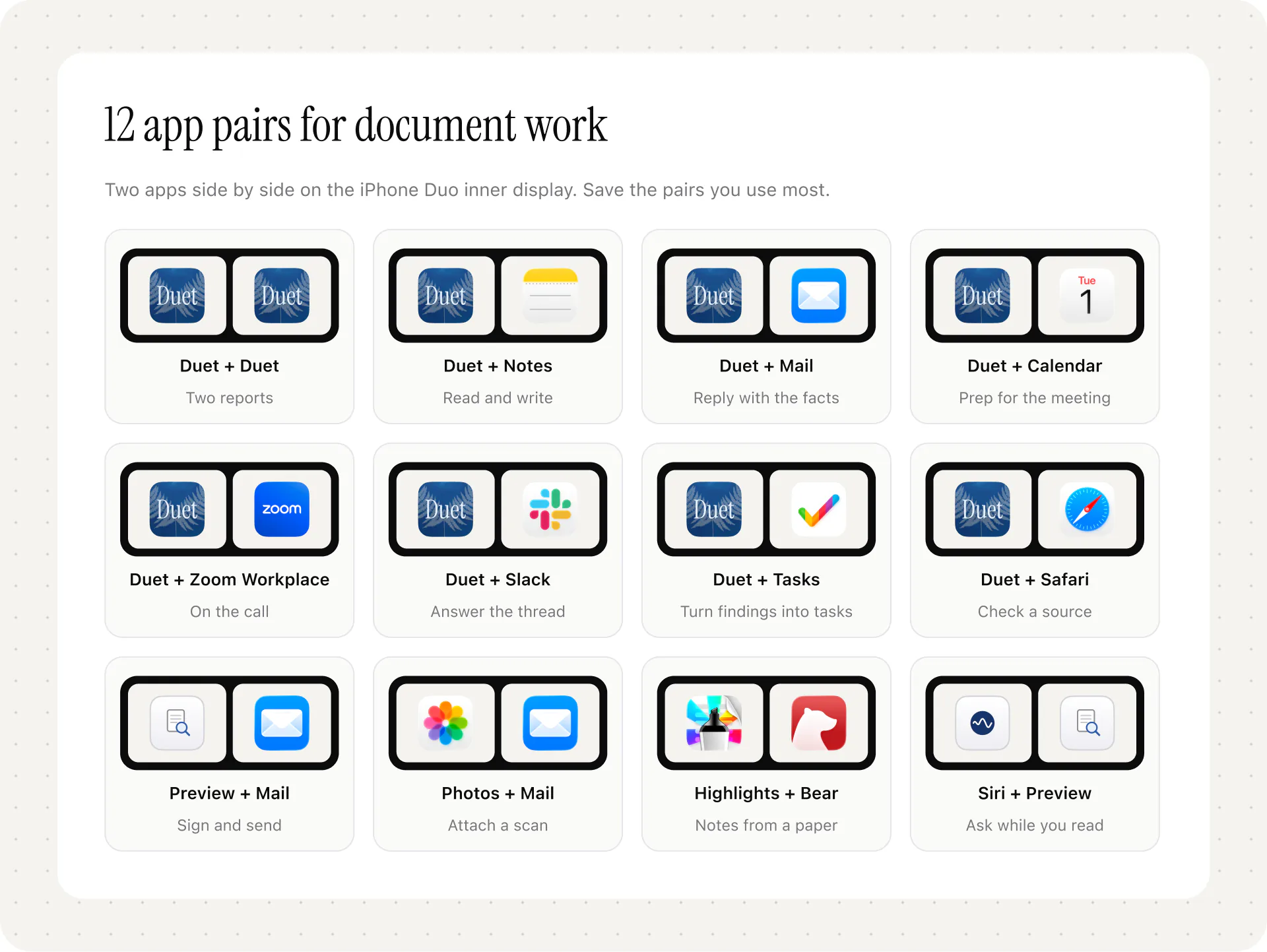
1. Duet + Duet: two reports side by side
Open two Duet windows to compare this quarter's board pack with last quarter's, or a draft contract with the signed one. Each window keeps its own place and its own Canvas.

For a full walkthrough, see Reviewing a Contract on the Train: Clauses Side by Side.
2. Duet + Notes: read on one side, write on the other
Keep the PDF in Duet and write up your conclusions in Apple Notes. Notes is one of Apple's own examples of a well-adapted Duo app: its panes adjust as you fold the phone.
3. Duet + Mail: reply with the evidence in view
When someone sends you a long PDF and asks for your view, open the email on one side and the document on the other. You can check each point against the page before you hit send.
4. Duet + Calendar: prepare for the meeting the document is for
Put the meeting on one side and the papers for it on the other. Check who's attending and what's on the agenda while you mark the pages you'll raise. If you use Fantastical, it added iPhone Duo support in version 4.2.3.
5. Duet + Zoom Workplace: the board pack during the call
Apple named Zoom as one of the first apps using the inner display. With the call on one side and the pack on the other, you can find the page someone is talking about without leaving the meeting.
6. Duet + Slack: discuss the report with your team
Read the report in Duet and keep the channel about it open beside it. Apple named Slack among the first apps built for the larger display.
7. Duet + Tasks: turn decisions into actions
As you work through a document, add each follow-up to a project in Tasks on the other side. Tasks 5.2 was made for iPhone Duo and keeps your place and anything you're typing as you fold and unfold.
8. Duet + Safari: check a claim against its source
When a report cites a figure, open the source in Safari beside it and check it there and then. Safari is one of Apple's apps optimised for Duo.
9. Preview + Mail: fill in a form and send it back
Apple says you can open a PDF form attached to an email in Preview, fill it in and reply with the completed form attached. With Mail on one side, you can check the instructions in the email while you fill in the form on the other.
10. Photos + Mail: attach the photos that go with a document
Apple's own Split View example on its iPhone Duo page is browsing Photos on one side and dragging a picture into an email in Mail on the other. It's a quick way to send the photos of a site visit or a whiteboard alongside a report.
11. Highlights + Bear: annotate, then write it up
Highlights released its iPhone Duo update in October, and Bear says it's ready for iPhone Duo. Highlights can export your annotations to Bear and other apps (export is a Pro feature), so you can mark up a paper on one side and build your notes on the other.
12. Siri + Preview: ask about what's on the screen
Apple says Siri AI can stay open on one side of the inner display and answer questions about content on the other. Siri AI launched in beta in English, and Apple says it isn't initially available in the EU, so check before you rely on it.
If your documents are confidential, think about where your questions go. Duet's AI answers from the document on the device, with page citations, and works offline. Our explainer on where your document goes with on-device AI, Private Cloud Compute and ChatGPT covers the differences.
Tips
- Put the app you tap most on the side of your writing hand. Each app's controls sit on its outer edge, so a right-handed reader may want the app they tap most on the right.
- Save the pairs you repeat. If you prepare for the same weekly meeting, save the pair once.
- Use two windows of one app for comparisons. Two windows of the same reader give you the same tools on both sides, which makes comparing easier.
Troubleshooting
I can't open a second window. Open the phone first: Apple says new windows can't be created on the outer display. The app also needs to support multiple windows.
One app looks cramped at half width. Apple says apps that already resize well on iPad are off to a good start on Duo. Check for an update with iPhone Duo support.
I can't make one side bigger. MacRumors reports the split is fixed at 50/50 on iPhone Duo.
FAQ
Does iPhone Duo have Split View?
Yes. iPhone Duo is the first iPhone with Split View. It shows two apps, or two windows of one app, side by side on the inner display.
Can you save app pairs on iPhone Duo?
Yes. Apple says you can save pairs of apps to come back to later.
Can you use Split View on the outer display?
No. Split View is on the inner display, and Apple says new windows can't be created on the outer display.
Can you resize the two sides in Split View?
Not according to MacRumors, which reports a fixed 50/50 split. On iPad, Split View can be resized.
Which PDF apps work well in Split View on iPhone Duo?
Duet and Highlights both support two windows side by side. See The Best PDF Readers for iPhone Duo and How to Read PDFs on iPhone Duo. For more Duo-ready apps, see The 10 Best Apps for iPhone Duo.
To try pairs 1 to 8, get Duet at duetreader.app or on the App Store. It's $19.99 once, with no subscription.
Sources
- Apple Newsroom, Apple unveils iPhone Duo, 9 September 2026.
- Apple, iPhone Duo.
- Apple Developer, Designing for iPhone Duo.
- Apple Developer, Leverage multiple displays and scenes on iPhone Duo.
- MacRumors, Apple Details How iOS 27 Adapts to iPhone Duo's Displays, 10 September 2026.
- MacRumors, iPhone Duo Can Do Split View, But Not Like Your iPad, 23 September 2026.
- Apple Support, Open and view PDFs and images in Preview on iPhone.
- Msquare Labs, Tasks 5.2: Made for iPhone Duo, 13 October 2026.
- App Store listings, checked 20 October 2026: Duet, Highlights, Bear, Fantastical.